Guides · November 12, 2026 · 10 min read
How to Use Explore Stories on Whistlr: Friends First, One Quiet Preview at a Time
How to use Explore Stories on Whistlr 7.0: the Friends row, the no-repeat video grid, quiet previews, who can see your story and the controls that keep it calm.
To use Explore Stories on Whistlr, tap the second icon along the bottom bar, the one shaped like two overlapping story cards. Up top you'll find a row of friends' stories, with anything you haven't watched pushed to the front. Underneath sits a two-column wall of short videos where only one tile plays a silent preview at any given moment. Clips you've already seen in Minis are filtered out, and once you've seen everything fresh, a "You're all caught up" message lets you know you can stop.
Until now, stories lived in a thin strip above the busy Notes feed. Lots of you told us they're the most personal part of Whistlr and deserved a proper home, so here it is. Explore Stories ships with Whistlr 7.0 on iPhone and Android; on Android, 7.0 is already available on Google Play, so if the tab is missing, update the app. It's an app feature, not part of the web version. Read on for how the friends row and video wall behave, why the tab is gentler than an endless scroll, who sees your stories, and which controls you have.
What is Explore Stories on Whistlr?
It's an entire tab devoted to two things: what your friends are posting to their stories, and a curated wall of short clips for once you're up to date. Same Whistlr, slower tempo.
| Piece | What it does |
|---|---|
| Friends row | Large circular bubbles for each person you follow who has a story up or is streaming, led by your own |
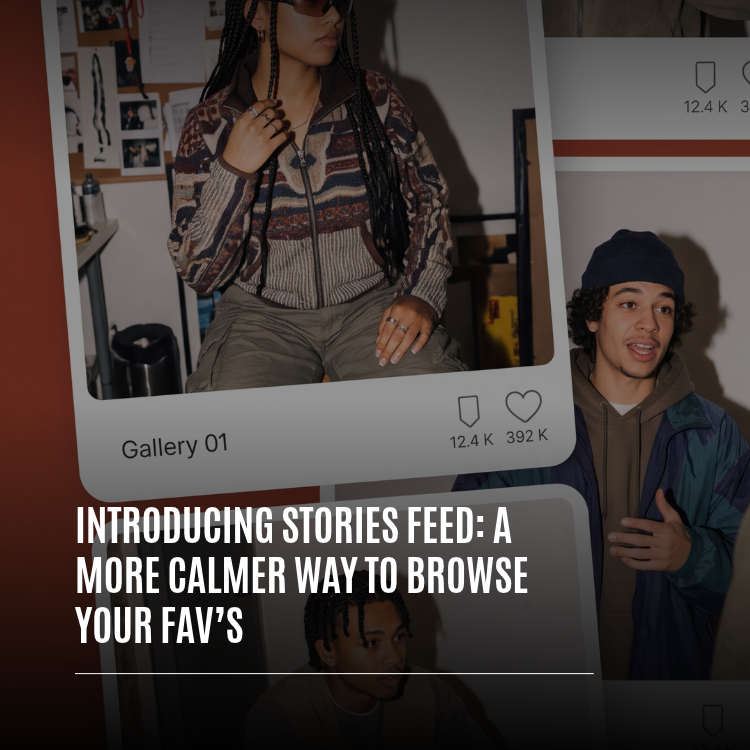
| Video wall | Paired columns of tall tiles, each a short clip with its caption on top and creator name plus like count beneath |
| One preview | A single tile plays briefly without sound while the others hold still |
| No repeats | Skips clips Minis has already shown you and ones you've scrolled past here |
| An ending | Shows "You're all caught up" when nothing new remains |
We wanted one corner of Whistlr you could open, check in on your friends, watch a couple of things that grab you, and leave feeling the time was well spent.
— The ETAPX team
Finding the tab
Look for the second slot in the bottom bar, immediately after Home. Its icon shows two fanned cards with a tiny face in one corner, and the front card turns solid when the tab is active. At the top of the screen, beside the "Explore Stories" title, are two buttons: a heart that opens notifications and wears a dot when something new has happened, and a person-with-speech-bubble that opens Invite Friends & Family.
We left out a search bar on purpose; this tab is for wandering, not hunting. To reach the side drawer, swipe right anywhere except across the friends row, which has its own sideways scroll.
How the Friends row in Explore Stories works
Just below the header is a "Friends" label with a small arrow; tapping it takes you to Find Friends. Beneath that are the bubbles themselves. It's literally the same story row you know from the Notes feed, so all your existing habits carry over.
The order of the bubbles
- You come first. Your bubble always opens the row; with nothing posted, it shows your photo with a plus for adding a story.
- Unwatched and live friends follow. Anyone with stories you haven't opened, or who's streaming right now, sits near the front.
- Finished friends slide back. Once you've viewed all of someone's stories, they move toward the end. Seeing one out of three doesn't count; the ring stays bright until you've seen every one.
- Most recent leads within each group, so among friends with fresh stories, the latest posters appear first.
While you're watching, the row stays frozen so you can move through friends in the sequence you began. Close the viewer and the people you just caught up on drift gently to the back. Each story lasts 24 hours and then disappears from the row by itself.
Reading the rings
| Look | Meaning |
|---|---|
| Colored ring | There's a story from this friend you haven't watched |
| Green ring | Their latest story is for Close friends, and you're one of them |
| Live badge | They're streaming now; tapping takes you into the broadcast |
| Plain, no ring | You're all caught up on them |
How to watch and reply to stories in Explore Stories
Tap a bubble and the story expands to full screen straight out of that ring. Every gesture responds immediately.
- Right side tap: next story, or the next friend once you reach the end.
- Left side tap: previous story or previous friend.
- Press and hold: pause and hide the buttons so you can study the shot; release to resume.
- Double-tap the center: like it, with a heart drifting down into the like button.
- Sideways swipe: skip to the next or previous friend.
- Downward swipe: close, and the story shrinks back into its ring.
- Upward swipe: open a link or reply, or on your own story, see your viewers.
The segmented bar across the top shows how many stories someone posted and your progress through each. Videos run for their real duration, and the bar pauses while a clip loads so you never miss its opening.
Replies, reactions and forwarding
Below a friend's story are a Send message box, a heart and a paper plane. Touch Send message and eight quick reactions pop up over the keyboard; one tap fires one off, or type something longer. Your reply arrives in their messages with the story attached, so the context is obvious. Written replies pass through our safety checks before sending, while emoji reactions go out instantly. The heart likes the story, and the paper plane forwards it to someone in your messages. Close friends stories can't be forwarded, so there's no paper plane on those.
What's in the Explore Stories video grid?
Scroll beneath the friends row to reach the paired columns of tall clips. Each tile shows the opening frame with the caption laid across its lower edge, plus the creator's picture, name and like total. The wall pulls from the same collection of short videos as Minis and is personalized the same way. What sets it apart is its layout and what it leaves out.
- No Minis reruns: anything you watched in Minis during the past week is excluded, as are clips Minis has queued up for you next.
- Its own ranking: each batch is ordered by how much viewers are enjoying a clip compared with how recently it went up, so you get strong picks, not merely the newest.
- Creators spaced out: you won't see two clips by the same person sitting side by side.
- Nothing recycled: clips you scrolled past here stay out of future batches, so each return brings fresh material.
Reach the bottom and another batch loads. When the supply of new clips runs dry, the wall shows "You're all caught up" along with a reminder that pulling down checks again.
Getting a fresh batch
| Action | Result |
|---|---|
| Arrive from a different tab | A new set of clips, already waiting |
| Pull down | Stories and the wall both refresh |
| Tap the tab icon while already there | Jump to the top with a new batch |
| Open a clip, then back out | Your wall is exactly as you left it |
Lose your signal and the tab still opens with your most recent wall, labeled "You're offline · showing saved videos." More arrive once you reconnect.
Why Explore Stories feels calmer than an endless feed
We didn't want this tab fighting for your attention, so much of the design is about restraint.
A single silent preview
At any moment only one tile is moving. It runs a soundless six-second preview, then passes the baton to the next tile in reading order, left then right, then down a row, cycling around. Start scrolling and it stops; once things settle, it resumes from the topmost visible tile. You'll never face a screen of clips all playing and competing at once.
Previews know when to rest
- After roughly a minute of previews with no scrolling, they pause until you move the wall again, so a phone set down on the table stops playing.
- Low Power Mode keeps previews switched off.
- If your phone heats up, previews halt and the friends row's animated rings freeze.
- Previews never prevent your screen from dimming or locking on its usual schedule.
- Switching tabs, opening something else or sending the app to the background stops all playback.
An actual finish
The friends row is done once you've seen everyone's stories, and the wall is done when there's nothing new. That's the whole idea. This tab is meant to be completed, the way a chat with a friend comes to a natural close, rather than something you keep thumbing out of habit. It's the first Whistlr tab designed from scratch around that sense of pacing.
What happens when you tap a video in the grid
Tapping a tile opens the clip full screen in a viewer built for this tab: a rounded card with a slim progress line along its top edge, the creator's photo and name underneath, and a white "+ Add" button for adding them as a friend without leaving. Three buttons sit below the card. React lets you react, echo the clip or save its audio. View Profile opens a compact preview of the creator that expands to their full profile. Post reply lets you respond, or tells you if the creator has switched replies off.
Navigation mirrors stories: a tap near the right edge skips forward, near the left edge restarts the current clip, in the middle pauses, and a double-tap likes. Swiping up also advances, and the clips that follow keep the same order as the wall you came from.
How to find and invite friends from Explore Stories
Stories are only as good as the friends posting them. The person-with-speech-bubble button opens Invite Friends & Family, a panel that rises from the bottom and closes with a downward swipe.
- Search, for finding anyone on Whistlr by name.
- Friends On Whistlr, listing contacts who already have accounts with an Add Friend button, or Message if you already follow them.
- Share My Profile, for sending your profile via Messages or Email, copying your link or choosing another app.
- Invite To Whistlr, listing contacts not yet on the app, each with an Invite button that sends a text.
- All Contacts, a single alphabetical list of everyone.
Before your phone ever asks for contact access, Whistlr explains why, and the decision is yours. Decline and the contact sections collapse into a small card offering Allow and Open Settings; nothing else is affected, and searching by name still works. If you do grant access, the only matches shown to you are people who've switched on contact syncing themselves.
Who can see your story on Whistlr?
With stories front and center, it pays to know exactly who's watching yours. Each time you post, you pick between two audiences.
| Choice | Audience |
|---|---|
| Your story | Your normal audience: followers on a public account, or only approved friends on a private one |
| Close friends | Only the people on your Close friends list, who see a green ring and a Close friends badge |
The Close friends boundary is more than a label. Anyone not on the list never receives that story; it simply never makes it to their phone. The same holds for people you've blocked and for anyone not approved to view a private account.
- Edit the whole list from Account Center under Close friends.
- Or work from a profile: on someone you follow, open the options and tap "Add to close friends list." The star goes green, and the same row removes them later.
- Nobody is notified when you add or remove them.
- See your viewers by opening your own story and swiping up. A count sits at the top, the list updates live while open, and nobody else can see it.
The three-dot menu
Each story hides a menu behind three dots, and playback pauses while it's open. On someone else's story you'll find Report, with reasons including spam, nudity, hate speech, violence, and bullying or harassment; reports are anonymous, and if someone is in immediate danger, contact local emergency services. There's also Copy link and Share to, where the poster allows it and never on close friends stories, plus About this account. On your own story you can Delete it early after a confirmation, or use Copy link and Share to while it's still up.
A first visit in eight steps
- Tap the overlapping cards in the bottom bar.
- Start with the first bright ring and work left to right; tap the right side to advance and swipe down when finished.
- Under a story, tap Send message and pick one of the quick reactions, or type a reply.
- Tap your own bubble at the start of the row to post a story; the plus opens the Add to story options.
- Scroll down and let the single preview walk you through the wall, then open whatever catches your eye.
- In the clip viewer, tap "+ Add" or View Profile to connect with a creator.
- Use the person-with-speech-bubble button to find contacts already on Whistlr or invite the ones who aren't.
- Finish by checking your Close friends list in Account Center, then put the phone down when the tab says you're caught up.
Frequently asked questions
What is Explore Stories on Whistlr?
It's a tab in Whistlr 7.0 that leads with your friends' stories in a row of round bubbles and adds a wall of short clips below. Only one clip previews at a time, already-seen videos are skipped, and the tab tells you when you're caught up.
Where is the Explore Stories tab?
It's the second icon in the bottom bar, right after Home, drawn as two overlapping story cards. Update to Whistlr 7.0 if you can't see it; on Android it's on Google Play. The tab lives in the app, not on the website.
Will I see the same videos in Explore Stories and Minis?
No. Clips Minis showed you in the past week, and those it's about to show you, are excluded. Anything you scrolled past in Explore Stories also stays out of later batches.
Do videos autoplay in Explore Stories?
Only one tile at a time, as a silent six-second preview. Previews stop while you scroll, pause after about a minute without scrolling, and stay off in Low Power Mode or if the phone is running warm.
Who can see my story on Whistlr?
Your usual audience, or only Close friends if you pick that when posting. Private accounts limit stories to approved friends. Close friends stories never reach anyone off the list, and every story expires after 24 hours unless you delete it sooner.