Guides · September 29, 2026 · 14 min read
How to Use Creator Studio: A Week-by-Week Guide to Growing, Streaming and Earning on Whistlr
How to use Creator Studio, mapped onto a real creator's week: read your analytics, schedule ahead, go live with OBS, then see every way you earn in one place.
Here is how to use Creator Studio in one paragraph. Upgrade to a free Creator account inside the Whistlr app, sign in at whistlr.studio with that same account, and then treat the dashboard as a weekly loop: read your analytics, schedule what comes next, go live from the streaming command center, study the per-stream report afterward, and finish the week in the unified earnings view. Those five habits map onto the three jobs every creator is doing at once, which are growing an audience, showing up for it live, and earning a living from it. Everything below is the longer version, written by the team that built it, in the order you'll actually use it.
We've written on Journey before about why Creator Studio moved to its own address, and about the mechanics of Gems. This piece is different. It's the operating manual we wish we could hand every creator on the day they upgrade: what each part of Creator Studio is for, which day of the week it earns its keep, and how the pieces pass information to each other so your decisions get a little smarter every week instead of resetting to guesswork.
What is Creator Studio, and how is it different from Whistlr Studio?
Creator Studio is Whistlr's professional dashboard for people who treat their channel as a business. It holds your analytics, audience insights, content scheduler, live-streaming command center and monetization tools, all connected to your Whistlr account. It is not the place where you edit video. That job belongs to Whistlr Studio, the creative toolkit. The shorthand we use internally is simple: Whistlr Studio is where you make something, and Creator Studio is where you run something.
| Where you are | What you do there | Typical moment |
|---|---|---|
| Whistlr app | Post, browse, talk to your community | Sharing a Mini on your lunch break |
| Whistlr Studio | Make content: trim, caption, edit | Cutting a highlight from last night's stream |
| Creator Studio (whistlr.studio) | Run the channel: analytics, scheduling, going live, earnings | Planning next week and checking what last week earned |
Creator Studio first shipped inside the Whistlr app in December 2025. Within a few months we noticed creators weren't using it like a social feature at all. They opened it on purpose, usually at the start of a work session, and stayed for a while. That's how people use business software, so we gave it a home that fits: a calmer interface at whistlr.studio with room for longer planning sessions and tools that would never fit inside a social app. Your Whistlr creator account signs you straight in. There's no second login, and your data, schedule and settings are already there.
We kept watching creators run a small business out of five different apps and a notes file. Creator Studio exists so the business side has one honest home, and so the time you spend in it is short and useful.
— The Creator Studio team
How to set up Creator Studio in one sitting
Setup takes a few minutes and costs nothing. If you're doing it at 11pm after a shift, that's fine; nothing here needs a business degree or a follower count.
- Upgrade to a Creator account in the Whistlr app. It's free, and it's the switch that gives you access to Creator Studio.
- Go to whistlr.studio in any browser and sign in with your Whistlr account.
- Fill in your creator profile so the dashboard can tailor itself to you and your audience knows who they're supporting.
- Connect your streaming setup. If you broadcast with OBS Studio, link it now. If you'll go live from your phone, the guided go-live flow handles setup the first time you stream.
- When you're ready to earn, complete verification and Stripe Connect onboarding. That's the gate for monetization, and it's about confirming who you are, not how many people follow you.
- Put a recurring planning block on your calendar. Thirty minutes a week is enough to start.
Monday: how to read Creator Studio analytics before you make anything
The most common mistake we see is creators deciding what to make first and checking results later. Flip that. Start the week in analytics and let the last seven days shape the next seven. Creator Studio analytics go further than view counts: you get performance over time, breakdowns by post type, retention curves that show where attention rises and falls inside a post or stream, engagement peaks, and date-range comparisons so this month can sit right next to last month.
We designed the analytics to answer a specific question: is my work connecting? That's a different question from how big the number is, and it leads to different decisions. A post with modest views and an unusually flat retention curve is telling you something good about the format. A post with a big spike and a cliff at the eight-second mark is telling you the hook worked and the rest didn't.
Reading a retention curve without overthinking it
A retention curve is just the share of viewers still watching at each moment. You don't need to study every wiggle. Look for three things: where the first big drop happens, whether there's a section where the line goes flat (people settled in), and whether anything makes it tick back up. Early drops usually mean a slow intro. Flat stretches show you pacing that works. Bumps often mark a moment worth clipping.
Two kinds of growth, measured separately
Creator Studio's audience growth signals split growth into two jobs: content that brings in new followers, and content that deepens loyalty among people who already follow you. Both matter, and they rarely come from the same posts. Whistlr is friend-first, so reach tends to travel through people who actually know each other, which means understanding the real shape of your audience pays off more here than chasing a generic trend. Audience insights show who follows you, when they show up and how they engage, so you're making work for real people instead of an imagined crowd.
- Which two posts held attention longest last week, and what do they have in common?
- Which post brought in the most new followers, and was it the same one your regulars engaged with most?
- Where did viewers drop off in your last stream, and what was happening on screen at that moment?
- How does this month compare with last month once you line up the same date range?
Tuesday: how to use the Creator Studio content scheduler
Consistency is one of the strongest growth levers you have, and it's the first thing to slip during a busy week. The Creator Studio content scheduler lets you plan posts and streams ahead of time, attach pinned posts, and set up follower notifications and stream reminders so your audience knows when to show up and why. It also offers best-time guidance drawn from when your audience is actually active, rather than generic advice about when everyone is online.
Picture a creator who works retail Wednesday through Saturday. Their best creative energy is Monday and Tuesday. Instead of trying to post fresh every day, they batch: Tuesday afternoon they shoot and edit three Minis in Whistlr Studio, drop them into the scheduler at the suggested windows, set a stream reminder for Sunday night, and pin a post announcing it. By Wednesday morning the week is handled, and the shifts at work don't break the rhythm their audience has come to expect.
Live night: how to go live on Whistlr from Creator Studio
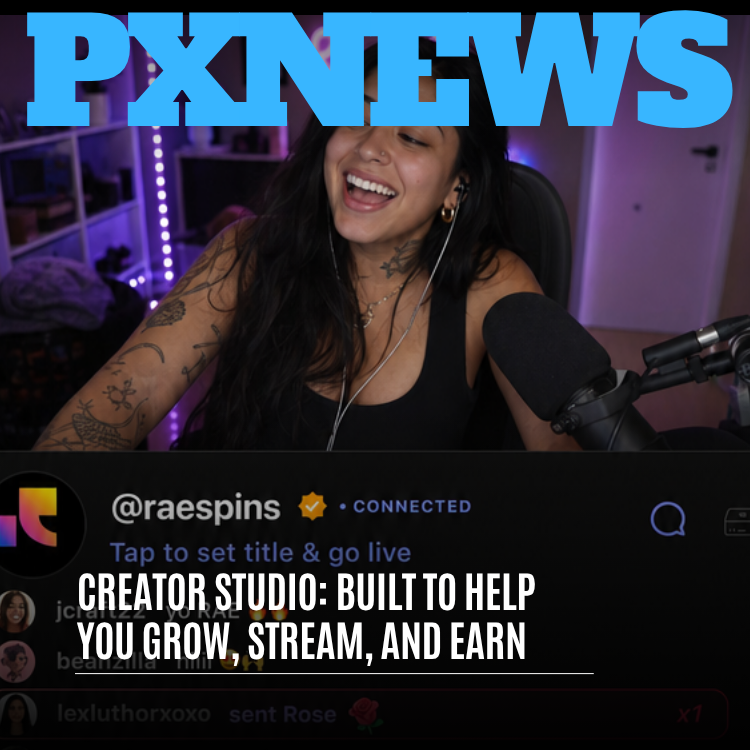
Live is where community, feedback and income meet. It's the most immediate connection you can have with an audience and often where the strongest relationships form. The streaming tools in Creator Studio are organized around the full life of a broadcast: before you go live, while you're live, and after you end.
Before you go live: guided setup and pre-flight checks
The go-live flow walks you through each decision that matters: title, category, who can watch, monetization options and visual settings. You can make a stream public, private, or limited to specific circles, which follows Whistlr's broader idea that you choose who each moment is for. Then Creator Studio runs pre-flight checks on your connection and stream health. We built that check because a bandwidth problem discovered in a ten-second test is a minor annoyance, and the same problem discovered in front of a live chat is a bad night.
How to go live on Whistlr with OBS Studio
If you've spent years building a production setup, keep it. Creator Studio works with OBS Studio, so your scenes, overlays, filters and plugins come along. You connect your existing setup, authenticate your Whistlr account, and point your broadcast at Whistlr. Newer creators don't need any of that; the guided path from your phone gets you to a first stream without touching an encoder setting.
While you're live: one control surface
Once you're on, chat, replies, overlays, product pins and moderation tools share a single control surface instead of hiding in separate menus. You can answer viewers, pin important messages, highlight contributions, trigger overlays and moderate in real time without leaving the broadcast view. A real-time Gems panel shows support as it arrives, including the pace and pattern through a segment, not just a running total. When a viewer sends a Gem, the moment appears in chat for everyone, which is part of what makes support feel shared rather than private.
After the stream: replays, clips and the per-stream report
A stream's value doesn't stop when you hit end. Streams are replay-ready by default, so replays and clips can flow back into the feed and keep finding new viewers for days. Post-stream insights cover watch time, replay views, engagement peaks and retention. Then there's the per-stream report, which shows how that one broadcast did financially compared with your typical stream.
The per-stream report is where hunches go to get tested. Say you suspect your Saturday afternoon cooking streams do better than your weeknight Q&As. After a month of reports, you'll know whether that's true, and you'll probably find something more useful: that one format brings in new followers while the other brings in more support from regulars. Those are different jobs, and once you can see them, you can schedule each one on purpose.
- Clip the bumps. The moments where retention ticked up or chat spiked are your best clip candidates.
- Compare against your own average, not someone else's channel. The report is built to show how a stream did relative to your typical night.
- Write one sentence of notes per stream. Pair the report with what you remember about the vibe, and patterns show up fast.
Sunday: how to track every way you earn in Creator Studio
Earning is the third job, and Creator Studio is where all the ways you get paid are set up, managed and tracked. Whistlr's monetization was built around diversification: several independent revenue streams that support each other, so no single change can wipe out your income. Here's the full list, briefly, because each one has its own deeper guide.
- WTC Gems: viewers buy Gems and send them during streams and on content. In the WTC tab you can rename your Gem tiers, set your own prices, set Gem goals and see your top supporters.
- Subscriptions: recurring monthly support from your most committed fans, with tiers and benefits you define, such as subscriber-only posts and streams, early access and exclusive communities.
- Ads: Whistlr's native advertising ecosystem contributes to creator earnings, and you can set brand-safety and category preferences for ads around your content.
- Storefronts and Live Shopping: sell through your own storefront and spotlight products mid-stream when attention and intent to buy are highest.
- Brand partnerships: manage partnership activity next to everything else, backed by the performance reporting brands expect.
All of it rolls into one earnings view: total revenue for any period, the split between streams, and which ones are growing or cooling. Revenue attribution ties earnings back to the posts, streams and subscriptions that produced them, so growth and income show up in the same picture. Earnings from every stream collect in the Stripe Connect account you set up during onboarding. When you withdraw, you pick per withdrawal: instant, for a small convenience fee shown before you confirm, or a business withdrawal on Whistlr's standard payout schedule at no extra cost.
How to use Creator Studio so grow, stream and earn feed each other
We didn't build three tools and put them in one tab. Each job hands something to the next, and that handoff is the real reason to keep them in one place. Growth tools tell you what to stream. Streams create the moments that earn and the clips that grow your audience. Earnings data shows which kinds of content hold the business up. Then the loop starts again with better information than last time.
| Job | Main Creator Studio tools | What it hands to the next job |
|---|---|---|
| Grow | Analytics, audience insights, scheduler | Which formats and times to stream, and who will show up |
| Stream | Go-live flow, pre-flight checks, OBS support, control surface, Gems panel | Live moments that earn, plus replays and clips that grow |
| Earn | WTC tab, subscriptions, ads, storefront, unified earnings view | Proof of which content sustains the business, feeding next week's plan |
Over a few months this compounds. A creator using the whole loop is deciding on evidence. They know which night to stream, which formats to clip, which posts bring in new people and which ones keep the regulars close. That's a far sturdier position than waiting on one viral moment.
A creator who understands their numbers and runs a real calendar is hard to knock over. We wanted that kind of durability to be the default on Whistlr, not something you only get after hiring a manager.
— The Creator Studio team
How to use Creator Studio at every stage of your channel
Creator Studio is built to scale with you, so the parts you lean on will change as the channel grows. You don't need to use everything on day one, and you shouldn't try.
| Stage | Lean on these first | You can ignore for now |
|---|---|---|
| New creator | Simple analytics, scheduler, guided first stream, first monetization steps | Team permissions, partnership tools |
| Growing creator | Deeper insights, steady publishing routine, subscription tools | Complex brand deal workflows |
| Established creator or team | Collaboration tools, role-based permissions for editors and moderators, unified earnings view, per-stream reports | Very little; this is the full toolkit |
| Business account | Creator workflows plus brand-safety controls and partnership tools for larger campaigns | Depends on how often you go live |
One honest note: Creator Studio isn't required for casual posting. If you share a Mini now and then for fun, the Whistlr app and Whistlr Studio's editing tools cover what you need. Creator Studio becomes useful once you have something to analyze, an audience worth planning around, and a reason to track what you earn.
Habits that separate weekly Creator Studio users from occasional ones
The tools do a lot, but the creators who get the most from Creator Studio share a handful of habits. None of them are complicated.
- Open analytics before the editor, every week, so data shapes what you make.
- Plan your money moments ahead of time. Decide before you go live when you'll set a Gem goal or pin a product, so it feels natural instead of sudden.
- Set brand-safety and ad preferences early, before you scale, not after a bad match.
- Add revenue streams gradually as your audience grows instead of switching everything on at once.
- Hand off editing or moderation through collaboration tools once you're ready, so you can stay focused on the part your audience came for.
The thread through all of this is that the tool should get out of the way at the moment you need to be present. Setup happens before the audience arrives. The numbers you need mid-stream are already on screen. The report is waiting when you're done. Less time fighting software means more time on the work.
Frequently asked questions
How do I start using Creator Studio on Whistlr?
Upgrade to a free Creator account in the Whistlr app, then open whistlr.studio in any browser and sign in with your existing Whistlr account. There's no separate login. Complete your creator profile, connect OBS Studio if you use it, and set up monetization through verification and Stripe Connect onboarding whenever you're ready to start earning.
Is Creator Studio free, and is there a follower minimum?
Creator Studio is free. Upgrading to a Creator account costs nothing, and the core analytics, scheduling and streaming tools have no follower minimum, so you can use them from your first day. Monetization features require verification and Stripe Connect onboarding rather than reaching any particular audience size.
Can I go live on Whistlr with OBS Studio?
Yes. Creator Studio works with OBS Studio, so your scenes, overlays, filters and plugins carry over. You connect your existing setup, authenticate your Whistlr account and point your broadcast at Whistlr. If you'd rather stream from your phone, the guided go-live flow handles setup and runs pre-flight connection checks before you start.
What is the difference between Creator Studio and Whistlr Studio?
Whistlr Studio is the creative toolkit where you make content, such as trimming clips and adding captions. Creator Studio is the business dashboard where you run your channel, with analytics, a content scheduler, a live-streaming command center and monetization tools. Most active creators use both every week: one to make the work, the other to plan, stream and earn from it.
What does the per-stream report in Creator Studio show?
After a broadcast, post-stream insights show watch time, replay views, engagement peaks and retention, and the per-stream report shows how that stream did financially compared with your typical stream. Used over several weeks, it shows which formats, times and collaborations actually work for your channel, so you can schedule future streams on evidence rather than instinct.