Product · October 21, 2026 · 10 min read
Never Miss a Stream Start: How Free Channel Subscriptions and Live Alerts Work on Whistlr
Viewers can now subscribe to a Whistlr channel for free with one tap. Here's how live alerts, the Home live banner and Streamers Channels bring them back.
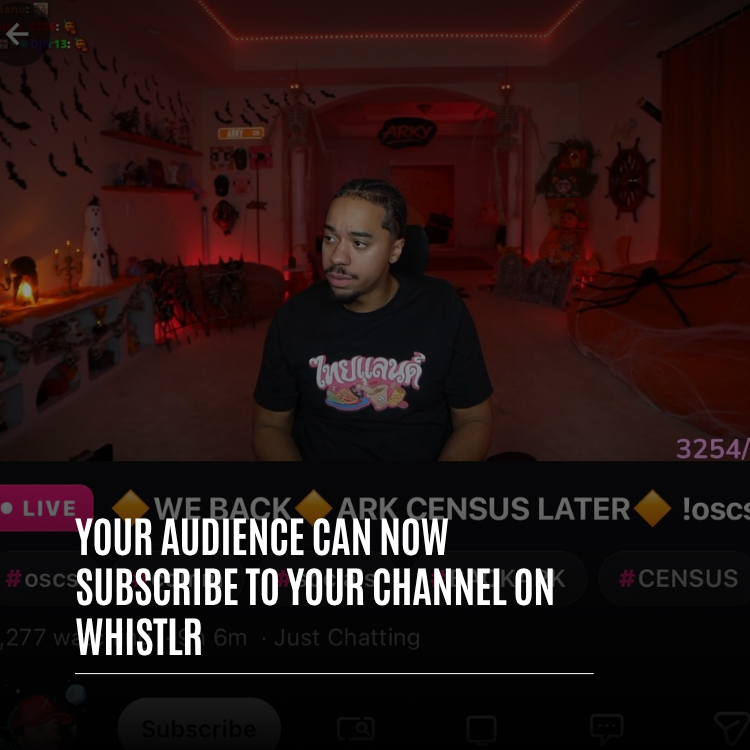
Subscribing to a Whistlr channel is free and takes one tap: while signed in, press the pink Subscribe button, which you'll find on any live stream and on every streamer's profile. The button flips to Subscribed, the channel lands in your subscriptions list and live alerts switch on, so your phone pings you the moment that streamer starts broadcasting. While they're on air, the channel can also show up in a live banner across the top of your Home feed. Everything can be managed later from Streamers Channels in Account Center.
Getting people to a stream has always been harder than running one. A viewer might enjoy an hour of your broadcast, leave, and never catch you again simply because nothing reminded them you were back. Channel subscriptions fix exactly that. This guide covers how they work, where to find the button, how alerts and the Home banner bring viewers back, how to manage a growing list, and how creators can build subscribers who really do turn up.
What does subscribing to a channel on Whistlr do?
In plain terms, subscribing is asking Whistlr to tell you when a streamer is on. It's a light, no-cost connection tuned to how live streaming works, where the most valuable thing is a nudge at the right second. One tap does three jobs:
- Adds the channel to your personal subscriptions list.
- Turns on live alerts, so you get a push notification as soon as the channel starts streaming.
- Makes the channel eligible for the live banner at the top of Home while it's broadcasting.
From then on the button reads Subscribed, so there's never any doubt about your status.
Here's how that plays out. Say you stumble on a late-night drawing stream on a Tuesday, enjoy it, and subscribe before bed. The following Tuesday you're making dinner when your phone lights up: the artist is live again. You tap in two minutes after the start, chat is still saying hello, and you're part of the stream instead of finding a clip of it days later.
Follow vs subscribe vs Vault on Whistlr: what's the difference?
Whistlr offers a few ways to stay connected to a creator, and each signals a different level of interest.
| Follow | Channel subscription | Vault | |
|---|---|---|---|
| What it signals | You enjoy their posts | You want to catch them live | You want all of their work |
| Centered on | Posts, Minis and updates | Live streams | Exclusive photos and videos in a locked tab |
| Price | Free | Free | Monthly fee |
| What you get | Their content in your Whistlr experience | Live alerts, the Home live banner and Streamers Channels | Access to their Vault |
Picture them as steps up in commitment. Many fans use all three for the creators they love most.
Timing is everything with live. An amazing stream nobody hears about is a creator talking to an empty room, so we gave viewers a one-tap way to say: let me know when you're on.
— The Creator Studio team
Where to find the Subscribe button on Whistlr
People usually decide they like a streamer mid-stream, so the button is placed right there. It always looks the same, a pink pill, which makes it instantly recognizable.
- Below the video: on a stream's page, Subscribe sits next to the streamer's avatar, alongside shortcuts for mini player, theater mode, chat and share.
- Inside the full-screen header: when you're watching full screen, a "+ Subscribe" pill is tucked into the host's name at the top, so you never have to leave the action.
- On the profile: every streamer's channel profile carries its own Subscribe button for anyone browsing first.
Once you've subscribed, the pill says Subscribed. Tapping it again undoes the subscription, so the button always matches reality.
How Whistlr live alerts work
Alerts are the engine of the whole feature. As soon as a subscribed channel goes live, Whistlr sends you a push notification. Tap it and you're watching, often in the opening minutes when chat is just getting lively and the stream is at its most social. There's nothing to refresh and nothing to check manually; you subscribe once and the reminders handle themselves.
Control alerts channel by channel
You probably don't want your phone buzzing for every streamer you like, and Whistlr doesn't force it. Alerts can be switched individually for each channel. To keep a streamer in your list and in your Home banner but stop the push notifications, open that channel's menu and pick Turn off live alerts. Pick Turn on live alerts whenever you want them back.
This works in everyone's favor. Viewers only get buzzed by the streamers they'd truly hate to miss. Creators end up with subscribers who actively chose their notifications, so each alert has a much better chance of becoming a viewer.
The live banner on your Home feed
Notifications slip by easily, which is why subscriptions also surface at the top of Home, the screen you open most. When one of your channels is live, a thin banner slides out from beneath the navigation bar. It shows the channel's avatar ringed in a colorful LIVE border, how many people are watching and an icon for the type of stream. One tap and you're in.
When several of your channels are live together, the banner cycles through them, changing every six seconds so each gets a turn. It floats over your feed without shoving posts around or losing your scroll position, and it disappears once none of your channels are live.
How to manage your channel subscriptions in Streamers Channels
As your list grows, you'll want a single place to see it. That's Streamers Channels. Open Account Center, look under Your content and favorites, and you'll find a tidy, searchable list with live status built in.
- A running count of how many channels you subscribe to, shown at the top.
- Live status for each channel, including what's being streamed, the stream title and current viewers, so you can jump straight in.
- A search bar for finding a channel by name or username.
- A tap on any channel opens its profile.
- A menu per channel for switching live alerts on or off, or unsubscribing.
Unsubscribing from this screen is intentional. Choose Unsubscribe and Whistlr asks you to confirm, spelling out the result: the streamer leaves your subscriptions and their live alerts end. Nothing happens until you agree, and you can resubscribe at any time from a stream or the channel profile.
How to subscribe to a channel on Whistlr, step by step
- Sign in to Whistlr, since subscriptions are attached to your account.
- Open any live stream or a streamer's channel profile.
- Tap the pink Subscribe pill, whether it's below the video, in the full-screen header or on the profile.
- Confirm it now reads Subscribed; alerts for that channel are active.
- Wait for the push notification or the Home banner the next time they go live.
- Head to Account Center, then Streamers Channels under Your content and favorites, whenever you want to search, adjust alerts or unsubscribe.
Habits that keep your list useful
- Hit Subscribe in the moment. If a stream grabs you, subscribe before you forget.
- Ration your alerts. Keep pushes for favorites and let the banner handle everyone else.
- Use Streamers Channels as a menu. When you're bored, it shows exactly who's on right now.
- Prune occasionally. Drop channels you've drifted away from so alerts stay meaningful.
- Support the ones you love. Gems, tips and Vault let you back a streamer directly once they're part of your routine.
Why channel subscriptions matter for creators
Someone who subscribes has told you as plainly as possible that they want to see you live. They'll get the alert, they'll see the banner, and there's a real chance they'll be there as you begin. That transforms the opening of every stream.
Better openings
The first minutes of a broadcast set its mood. A room that fills quickly attracts more people, keeps chat moving and gives you energy to feed off. Without subscribers you start from zero each time. With them, alerts and the banner bring your keenest viewers in right at the start.
That early crowd also shapes how new arrivals judge you. Someone who wanders in from browsing Live and finds an active chat is far more likely to stay than someone who lands in a silent room, so every subscriber who turns up on time quietly helps you hold on to strangers too.
A more dependable audience
Followers fade. People hit Follow, then forget and stop noticing your posts. Subscribers made a deliberate, live-specific choice and keep a dedicated list of channels they care about, so your subscriber count is a far better guide to who will actually show up and a firmer base for planning a schedule.
The audience ladder
Subscriptions fill a gap in the path from casual viewer to dedicated supporter. Most fans climb roughly these rungs:
| Rung | What the fan does | Tool involved |
|---|---|---|
| Viewer | Finds a stream and watches a while | Live |
| Subscriber | Wants to know next time you are on | Channel subscription (free) |
| Supporter | Sends WTC Gems in big moments or tips from your profile | Gems and Tips |
| Vault subscriber | Pays monthly for exclusive photos and videos | Vault |
Previously, turning a one-off viewer into a regular came down to luck. Now there's a free, natural middle step, and that's where loyalty takes root. Each extra stream someone catches makes it likelier they'll become a supporter later on.
Climbing those rungs is never forced. Plenty of subscribers will stay happily on the free step for good, and that's fine: a subscriber who shows up every week still fills your room, keeps chat lively and helps newcomers feel welcome.
How to grow your channel subscribers on Whistlr
The button works without any help, but creators who ask well grow faster. Try these:
- Explain the benefit. "Tap Subscribe and you'll get pinged next time I go live" works better than a vague request.
- Time the ask. Mention it straight after a great moment, when viewers feel most invested.
- Keep a rhythm. Viewers who know roughly when you stream keep alerts on and show up.
- Write titles that earn the tap. When an alert brings someone back, the title is what keeps them.
- Recognize regulars. People stay subscribed where they feel part of the room.
- Make every alert worth it. Each time you go live, subscribers get pinged, so give them a reason to be glad.
- Combine with followers. Your Go Live Notification, up to 140 characters and one per stream, goes to followers alongside subscribers' alerts for the biggest possible start.
One more thought for creators: a subscriber who turns alerts off hasn't left. They still see you in their Home banner whenever you're live and can find you in Streamers Channels. Treat the banner as a second chance to win them back with a great title and a lively opening, rather than counting them as lost.
Privacy and control for subscribers
Your list is yours. It's kept private to your account, only you can view or edit it, and other viewers can't see it. Subscribing never asks for payment details or enrolls you in anything else.
You decide which channels get to send alerts and which just sit in your list and banner. Unsubscribe with one tap on Subscribed or through the channel menu in Streamers Channels, where you'll confirm first. If your list ever fails to load, the screen tells you directly and offers a Retry button, rather than showing a blank page that might suggest your channels have vanished.
We treat every notification as something the viewer lent us. Keep them useful, keep them under the viewer's control, and people will keep opening them.
— The Creator Studio team
Whistlr channel subscriptions: quick reference
| I want to… | Where | Result |
|---|---|---|
| Subscribe | Pink Subscribe pill below the video, in the full-screen header or on the profile | Channel added, alerts on, button reads Subscribed |
| Know when they go live | Happens automatically after subscribing | Push notification plus the Home live banner |
| Stop pushes but keep the channel | Channel menu in Streamers Channels | Turn off live alerts; channel stays in list and banner |
| See who is live right now | Account Center, then Streamers Channels | What they are streaming, the title and viewer count |
| Unsubscribe | Tap Subscribed, or Unsubscribe in Streamers Channels | After confirming, the streamer is removed and alerts stop |
For creators, read that table backwards: each row is a moment when a viewer decides whether to come back. A clear title, a steady schedule and a stream worth the ping keep you on their alert list.
Your most loyal viewers want to be there from the first minute. Now a single free tap makes sure they are. Ask your audience to subscribe next time you're live, and give them something worth returning for.
Frequently asked questions
Do Whistlr channel subscriptions cost anything?
No. It costs nothing and needs no payment details. Vault is the separate, paid option, where fans pay each month for a creator's exclusive photos and videos.
What do I get after subscribing to a Whistlr channel?
You receive a push notification whenever the channel starts streaming, the channel may show up in the banner across the top of your Home feed during its streams, and it joins the list in Streamers Channels.
Is subscribing on Whistlr the same as following?
No. Following is about a creator's posts and updates. Subscribing is about streams specifically: it's linked to a channel and makes sure you hear about it whenever that channel goes live, via alerts and the Home banner.
Can I mute stream notifications from one Whistlr channel but stay subscribed?
Yes. Go to Account Center, open Streamers Channels under Your content and favorites, then pick Turn off live alerts from that channel's menu. It stays in your list, and Turn on live alerts restores them.
Why is the Subscribe pill missing when I watch a Whistlr stream?
The button only shows for signed-in accounts. You can watch without signing in, but subscribing, live alerts and the Home live banner all require logging in.